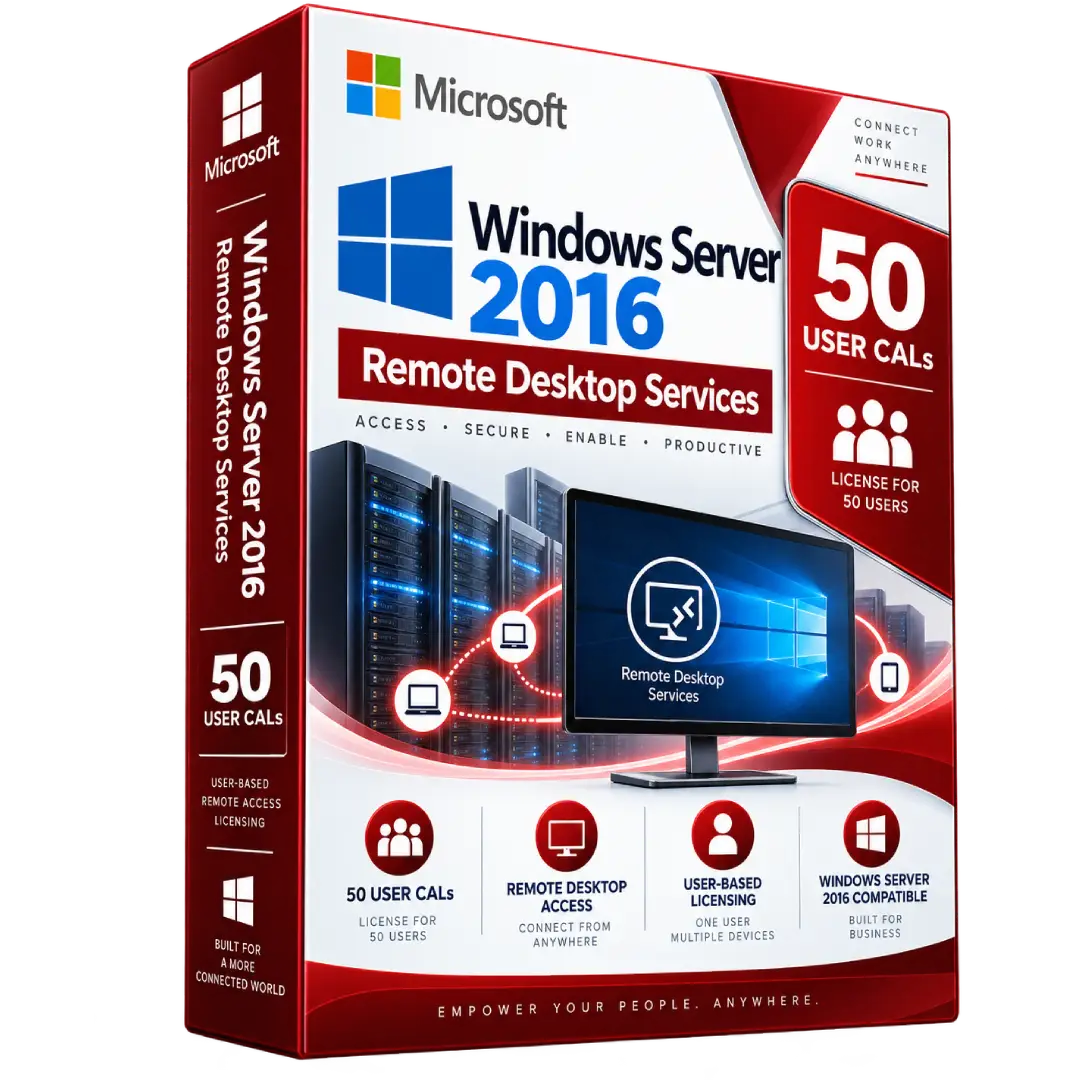
Windows Server 2016 RDS CALs – 50 User License
$61.00
Enable remote desktop access to a Windows Server 2016 environment with 50 Windows Server 2016 Remote Desktop Services (RDS) User CALs.
- 👥 50 User CALs: Provides RDS access licensing for 50 designated users.
- 🖥️ Remote Desktop Services: Allows licensed users to connect to supported Windows Server RDS session hosts.
- 🔄 User-Based Licensing: Each User CAL is assigned to a user and can cover that user’s access from multiple devices.
- 🔐 Windows Server 2016: Designed for RDS environments running Windows Server 2016.
- 📋 License Management: RDS CALs are installed and managed through a Remote Desktop Licensing server.
⚠️ Important: An RDS CAL is an additional access license. Microsoft requires a Windows Server CAL as well as an RDS CAL for users or devices accessing Remote Desktop Services functionality. ([microsoft.com](https://www.microsoft.com/licensing/guidance/Desktop-Application-Windows-Server-RDS?utm_source=chatgpt.com))
🖥️ Windows Server 2016 Remote Desktop Services – 50 User CALs
Windows Server 2016 RDS User CALs provide access licensing for users connecting to Remote Desktop Services session hosts. This product is intended for organizations using Windows Server 2016 to provide remote desktops or applications to designated users.
The listing provides 50 User CALs. Under Microsoft’s RDS licensing model, a User CAL is assigned to a specific user and allows that user to access Remote Desktop Services from multiple devices, subject to the applicable licensing terms. ([learn.microsoft.com](https://learn.microsoft.com/en-us/windows-server/remote/remote-desktop-services/rds-client-access-license?utm_source=chatgpt.com))
🔥 Key Features & Benefits
- 👥 50 User Access Licenses: Designed to cover 50 designated users accessing RDS functionality.
- 🖥️ Remote Desktop Access: Supports users connecting to Windows Server-hosted desktops and applications through Remote Desktop Services.
- 🔄 User-Based Licensing: A User CAL follows the licensed user rather than a particular device.
- 💻 Multiple Devices: A licensed user can access RDS from multiple devices under the User CAL model. ([learn.microsoft.com](https://learn.microsoft.com/en-us/windows-server/remote/remote-desktop-services/rds-client-access-license?utm_source=web&utm_source=chatgpt.com))
- 🔐 Windows Server 2016: Compatible with Windows Server 2016 RDS session hosts.
- 📊 Centralized License Management: CALs are installed, issued, and tracked through an RDS Licensing server. ([learn.microsoft.com](https://learn.microsoft.com/en-us/windows-server/remote/remote-desktop-services/rds-install-cals?utm_source=chatgpt.com))
📌 Product Specifications
- Product: Windows Server 2016 Remote Desktop Services CAL
- License Type: User CAL
- Quantity: 50 Users
- Server Version: Windows Server 2016
- Service: Remote Desktop Services (RDS)
- Product Type: Digital License
👤 What Is an RDS User CAL?
An RDS User CAL grants one specific user the right to access Remote Desktop Services. Unlike a Per Device CAL, the license is associated with the user rather than one physical computer.
For example, a user with an RDS User CAL can connect to an authorized Windows Server RDS environment from a desktop and a laptop. Microsoft describes the Per User model as appropriate when users have their own dedicated devices and need flexible access. ([learn.microsoft.com](https://learn.microsoft.com/en-us/windows-server/remote/remote-desktop-services/rds-client-access-license?utm_source=turn0search0))
🔗 RDS CAL + Windows Server CAL
RDS CALs are additive licenses. Microsoft states that remote access to Windows Server requires a Windows Server CAL plus the additional Remote Desktop Services CAL for each user or device accessing the RDS functionality. ([microsoft.com](https://www.microsoft.com/licensing/guidance/base-and-additive-cals?utm_source=turn0search4))
- 🗄️ Windows Server CAL: Provides the base access license for Windows Server.
- 🖥️ RDS CAL: Provides the additional access rights required for Remote Desktop Services functionality.
Therefore, the 50 RDS User CALs do not replace the required Windows Server CALs or the Windows Server license.
⚙️ Compatibility
Microsoft’s current RDS compatibility documentation confirms that Windows Server 2016 RDS CALs can be used with a Windows Server 2016 session host. Later RDS CAL versions can also provide access to earlier Windows Server versions, but a Windows Server 2016 RDS CAL cannot be used to access later session-host versions such as Windows Server 2019, 2022, or 2025. ([learn.microsoft.com](https://learn.microsoft.com/en-us/windows-server/remote/remote-desktop-services/rds-client-access-license?utm_source=turn0search0))
🏢 Typical Use Cases
- 🏢 Businesses providing remote desktop access to employees
- 💻 Organizations hosting applications on Windows Server
- 👥 Teams requiring remote access from multiple user devices
- 🖥️ Remote application and desktop environments
- 🌐 Centralized Windows Server application deployments
🔑 Installation & License Configuration
- Install and activate a compatible Remote Desktop Licensing server.
- Open Remote Desktop Licensing Manager.
- Select Install Licenses for the licensing server.
- Enter the applicable license program and license information supplied with your RDS CALs.
- Select the Windows Server 2016 product version, User CAL license type, and number of licenses.
- Configure the RDS deployment to use the activated licensing server.
- Select the appropriate Per User licensing mode for the deployment.
Microsoft documents these steps for installing and configuring RDS CALs through Remote Desktop Licensing Manager. ([learn.microsoft.com](https://learn.microsoft.com/en-us/windows-server/remote/remote-desktop-services/rds-install-cals?utm_source=turn0search2))
📋 License Management
Microsoft states that RDS CALs are issued and tracked by a Remote Desktop Licensing server. For Per User CALs, administrators are responsible for ensuring that sufficient valid licenses are available for the organization’s users. ([learn.microsoft.com](https://learn.microsoft.com/en-us/windows-server/remote/remote-desktop-services/rds-client-access-license?utm_source=turn0search0))
📥 Digital Product Delivery
This is a digital licensing product. No physical CD, DVD, or boxed software is required. The applicable license information is delivered digitally according to the order.
⚠️ Before You Buy
- ✔️ This listing covers 50 RDS User CALs.
- ✔️ Each User CAL is intended for one designated user.
- ✔️ A User CAL can cover the licensed user’s access from multiple devices, subject to Microsoft’s licensing terms. ([learn.microsoft.com](https://learn.microsoft.com/en-us/windows-server/remote/remote-desktop-services/rds-client-access-license?utm_source=turn0search0))
- ✔️ Windows Server 2016 RDS CALs are compatible with Windows Server 2016 session hosts.
- ⚠️ RDS CALs are additive: the required Windows Server CAL and Windows Server licensing are separate requirements. ([microsoft.com](https://www.microsoft.com/licensing/guidance/Desktop-Application-Windows-Server-RDS?utm_source=turn0search1))
- ⚠️ Verify your complete Microsoft licensing requirements before deployment.
🛠️ Need Assistance?
If you need help understanding the RDS licensing requirements or setting up your Remote Desktop Licensing server, contact our support team and we’ll help you with the available product information.
Trademark Notice: Microsoft, Windows Server, Remote Desktop Services, and related names are trademarks of Microsoft Corporation. BuySoftKeys is an independent retailer and this product description does not imply ownership of or affiliation with Microsoft.
Related products
-
Windows ServersBuy now
Windows Server 2025 Remote Desktop Services CALs – 50 Users License
$79.00 Add to cart - Buy now
- Buy now
- Buy now